
Enhanced Remaster Settings: HDR, 120fps, Decimation
Where to find Enhanced Remaster graphics settings: HDR, decimation filter, texture resolution, and 120fps support plus PC requirements from Steam.
FAQ
Where are Enhanced Remaster graphics settings?
What is the decimation filter in Resonance of Fate?
Does Enhanced Remaster support HDR?
How do you enable 120fps?
What PC specs does Steam list?
Is Enhanced Remaster verified on Steam Deck?
How do you open the graphics menu?
From the title screen, choose OPTIONS, then highlight the Graphics tab (controller prompts show L1 / R1 — Switch Tabs). The footer text reads Set graphic options.
The Enhanced Remaster tab adds rows that do not appear on the older 4K/HD graphics list in side-by-side footage—compare /guides/enhanced-remaster-vs-4k-hd-edition/.
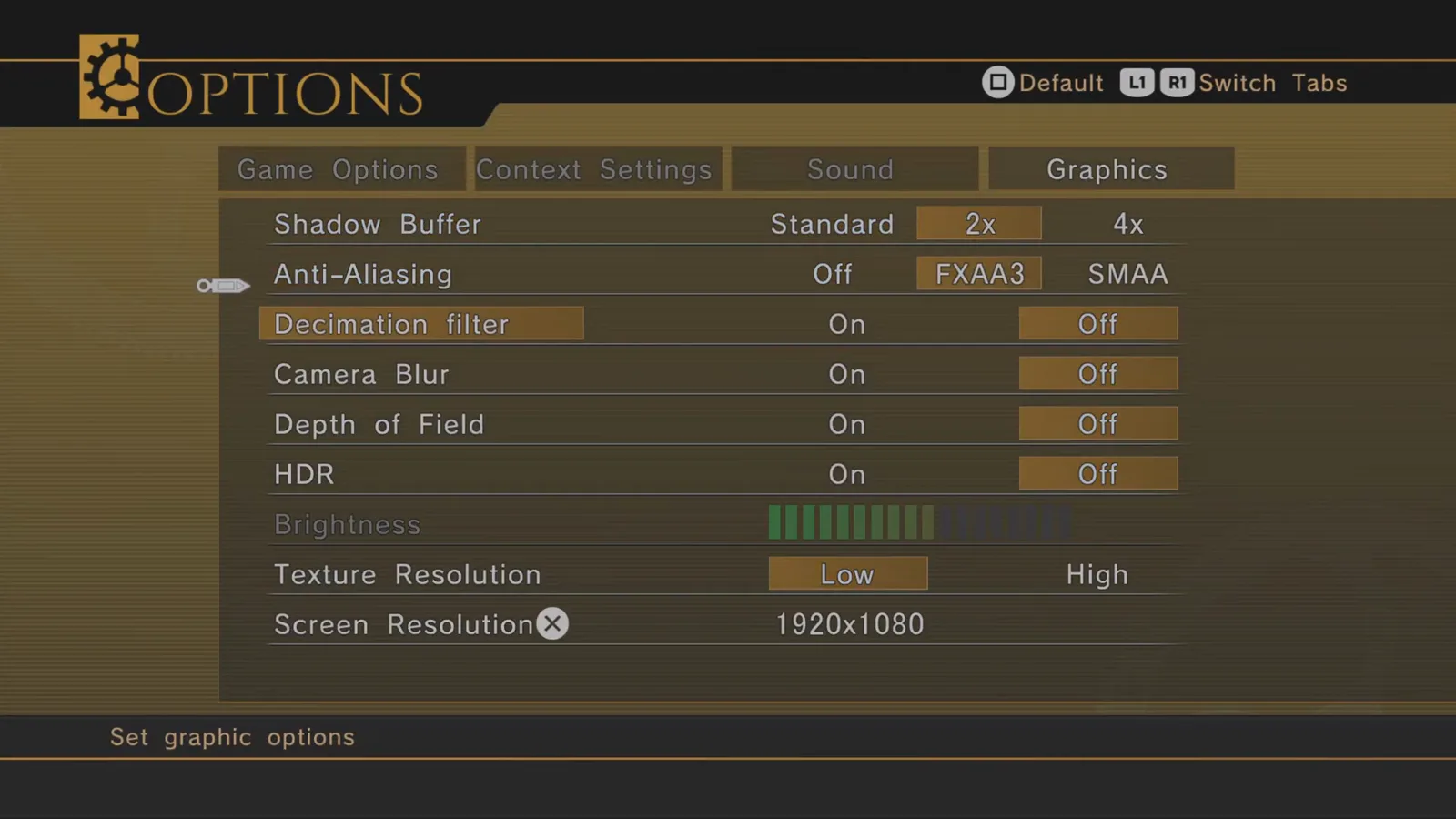
What each major toggle does
| Setting (exact label) | What it controls | Practical note |
|---|---|---|
| Shadow Buffer | Standard / 2x / 4x shadow map quality | Higher settings cost GPU time in town and battle arenas |
| Anti-Aliasing | Off / FXAA3 / SMAA | FXAA3 is the balanced default in comparison footage |
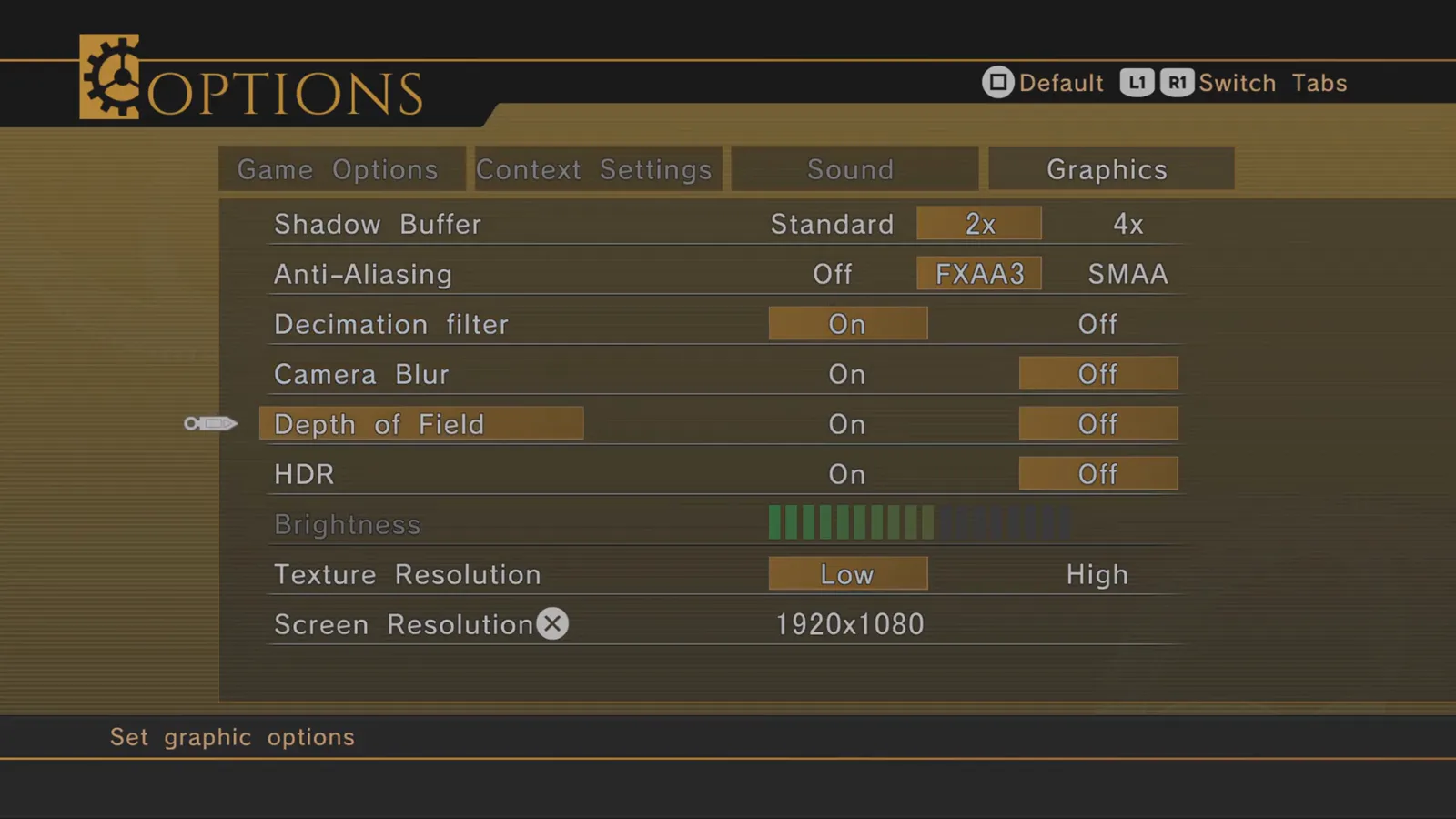
| Decimation filter | On / Off | Enhanced-only; sharpens fine detail—try On for character close-ups |
| Camera Blur | On / Off | Motion blur on camera moves; Off for clearer screenshots |
| Depth of Field | On / Off | Cinematic focus; Off if you prefer uniform sharpness |
| HDR | On / Off | Requires HDR display; adjust Brightness bar below |
| Brightness | Segment bar | Calibrate with HDR On to avoid crushed shadows |
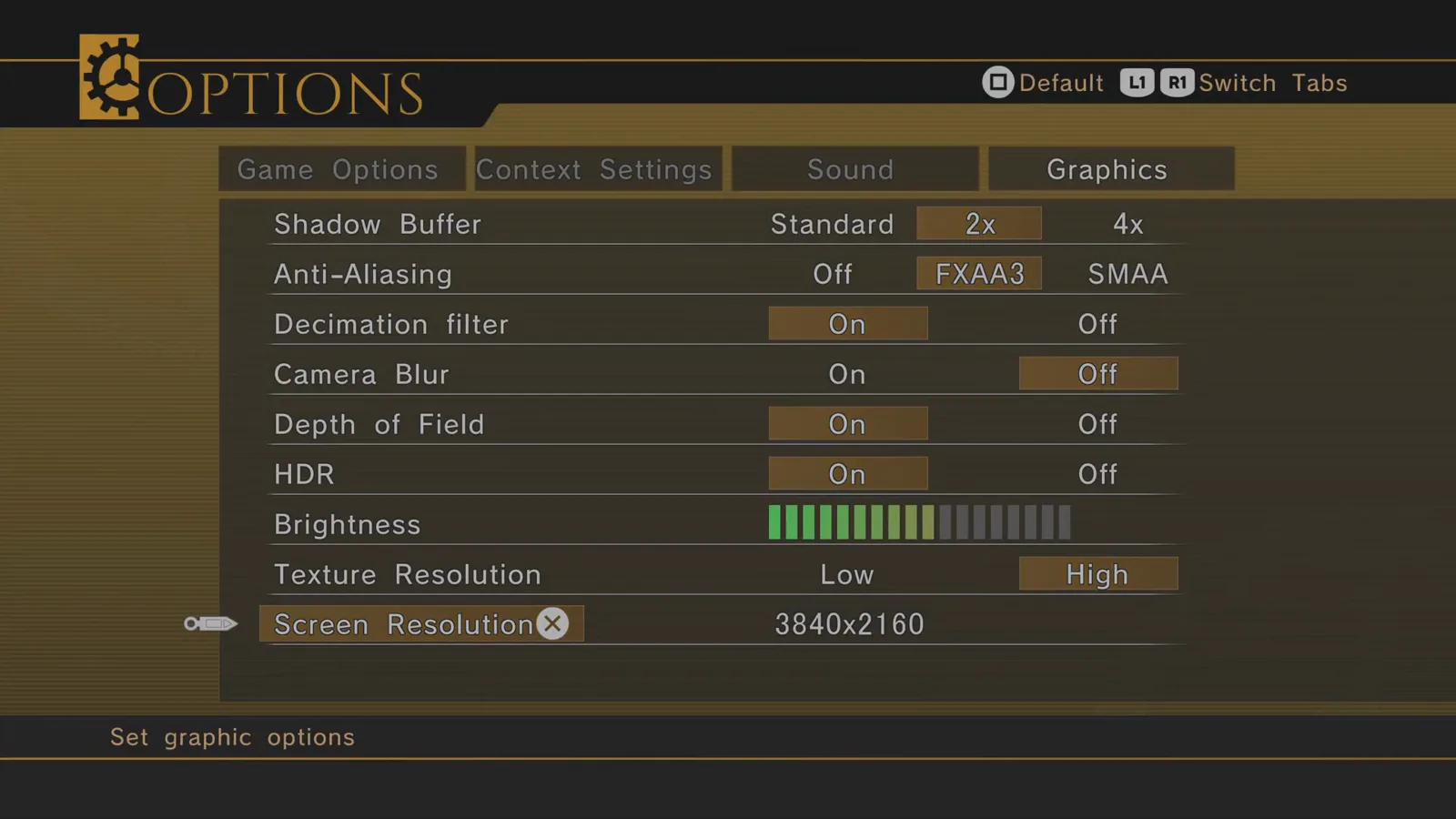
| Texture Resolution | Low / High | High pairs with upscaled Enhanced assets |
| Screen Resolution | e.g. 3840×2160 | Lower to 1920×1080 to recover frame rate |
Turn Decimation filter and HDR on when your display supports them:
For 4K play, set Texture Resolution to High and Screen Resolution to 3840×2160 when VRAM allows.
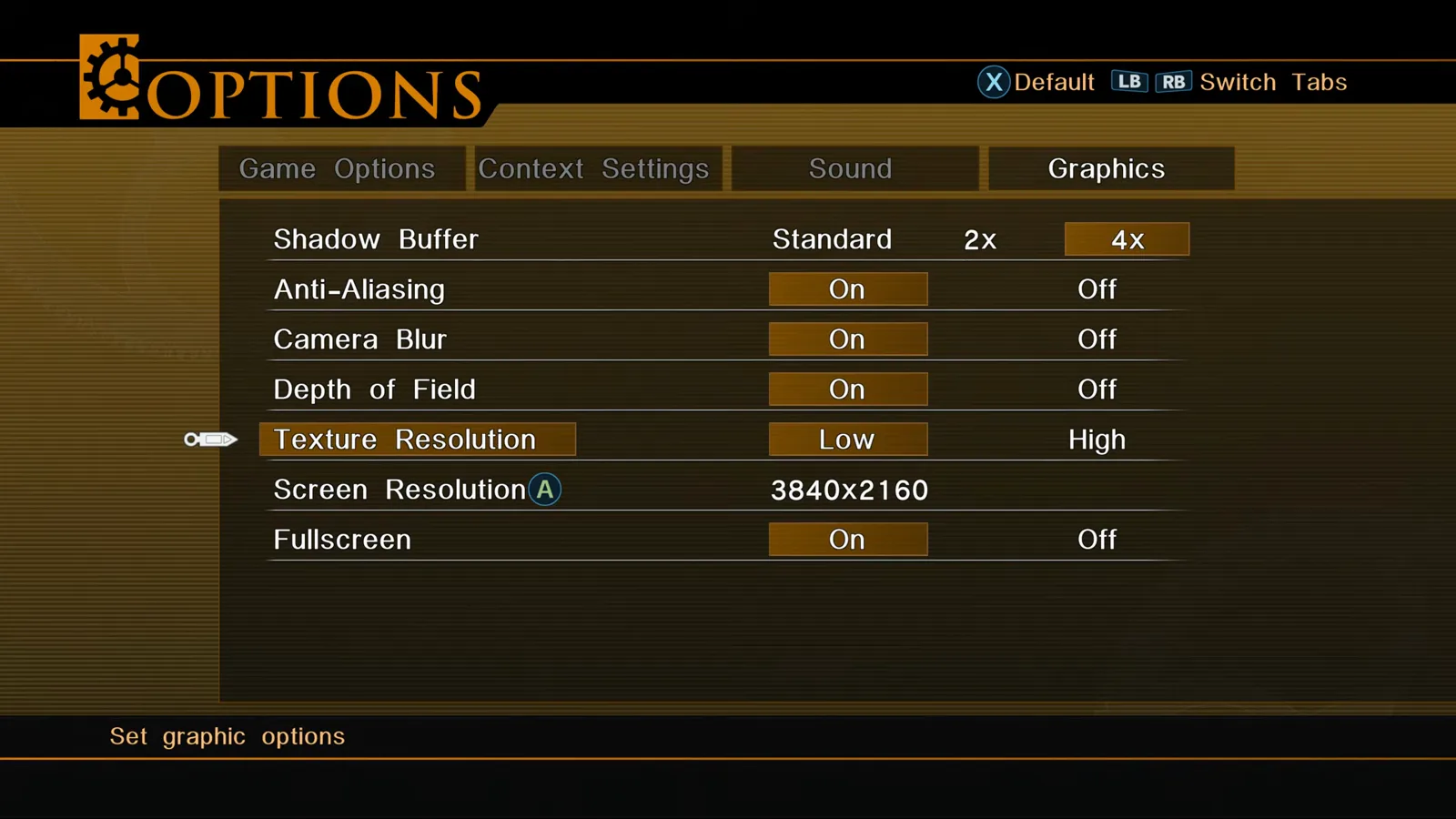
Baseline 4K/HD Edition footage tops out without HDR/decimation rows—useful sanity check if you forgot to install the upgrade (/guides/steam-upgrade-dlc-and-ps5-upgrade/).
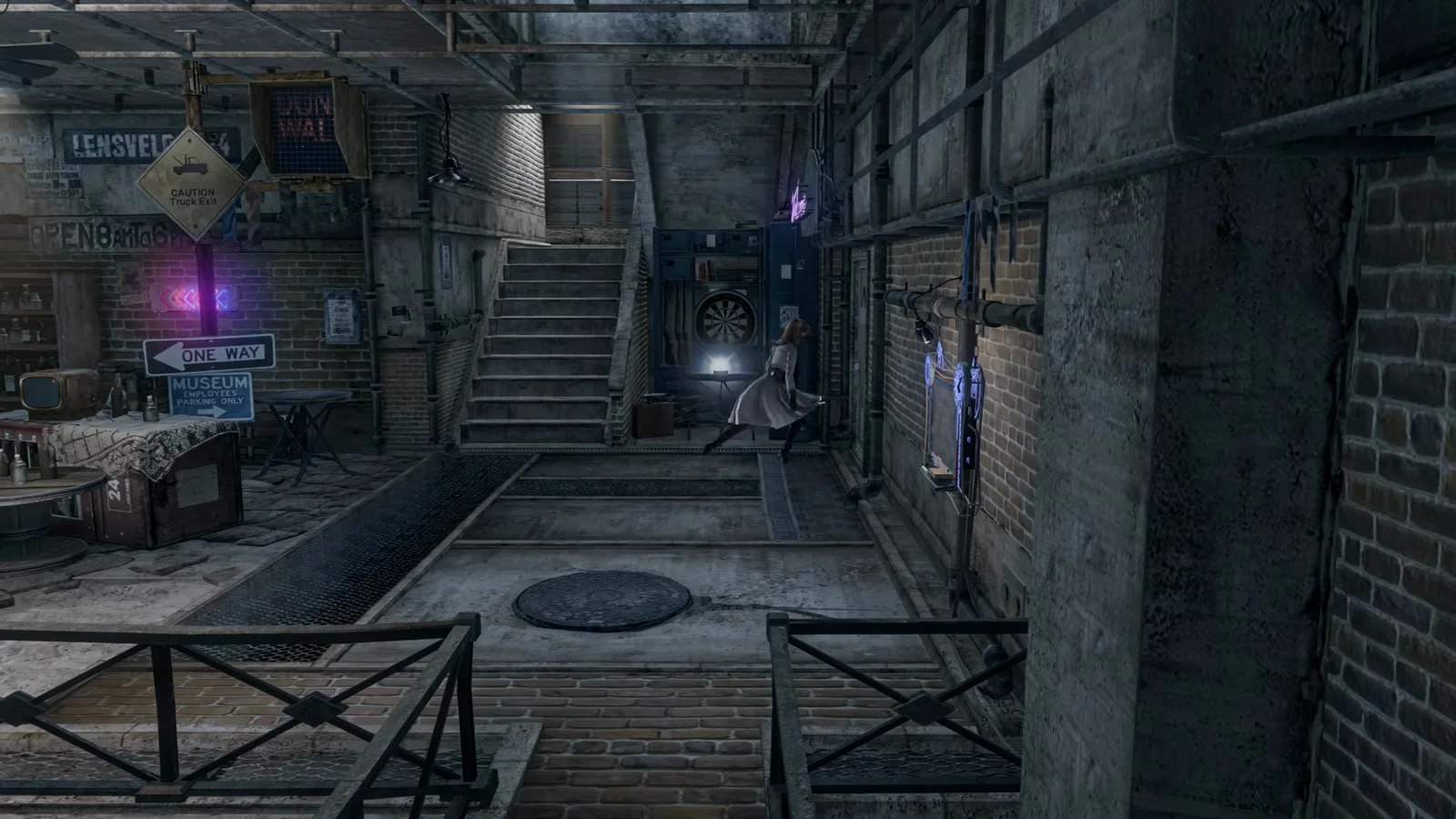
Indoor lighting reacts strongly to texture and filter choices—use still scenes to judge clarity before long sessions.
120fps, performance, and Steam Deck
Steam’s Enhanced Remaster DLC page lists support for 120 fps alongside native 4K and HDR (store text checked 2026-10-31). The US PlayStation Store description for the PS5 SKU names native 4K output and HDR but does not mention 120 fps in the copy we saw the same day—treat high refresh as a PC store promise until you confirm on your console. PC capture with performance overlays can run above 60fps in field areas, but we did not locate a Graphics-tab row literally named “120fps” in the frames reviewed here. Practical steps on PC:
- Set Screen Resolution and Anti-Aliasing one step below your target if frame rate dips.
- Use a 120Hz or faster display and disable external 60Hz caps in Windows or SteamOS.
- On PC, if your Graphics tab includes Fullscreen, leave it On while testing frame pacing (the 4K/HD Edition menu shows this row; Enhanced captures we reviewed were at 1920×1080 with controller tab prompts).
Official system requirements on Steam (October 2026 store text):
- Minimum — Windows 11; Intel Core i5-3330 or AMD FX-8350; NVIDIA GTX 650 Ti / AMD HD 7770; DirectX 12; 90 GB storage; targets 1280×720, anti-aliasing off.
- Recommended — Windows 11; Core i5-8600K or Ryzen 5 3600; GTX 1070 or RX 5600 XT; 90 GB storage; targets 3840×2160, anti-aliasing on.
Steam lists 4 MB / 12 MB RAM in the store template—treat that as a storefront typo and plan for normal PC gaming memory (community reports and overlays show 1–2 GB process use in menus).
Combat-heavy tuning overlaps with /guides/battle-system-explained/ and /weapons/weapon-customization-guide/ when fights drop frames.
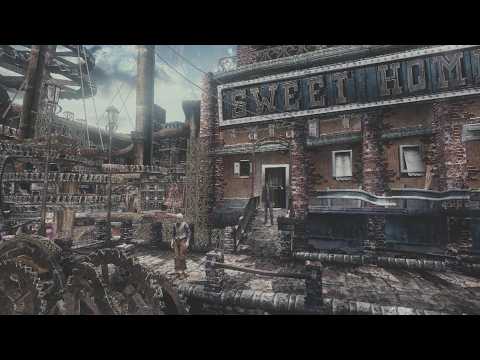
Graphics comparison showing Enhanced Remaster options menu
Sources
- Steam — Enhanced Remaster store page (features + system requirements)
- PlayStation Store (US) — PS5 listing (4K/HDR store copy)
- Anime News Network — Decimation filter in launch materials
- GamerPapers — Decimation filter summary
- Footage frames: Nartist — RESONANCE OF FATE PS5 edition: Graphics comparison (YouTube, v4SGC4OOeow)
- Footage frames: No music gaming — Resonance of Fate 4k remastered edition DLSS 5 (YouTube, uPSF6yPC7O0)
Last verified: 2026-10-31
Related Articles
bosses
Tar Man Boss Guide — Chapter 1 Lucia Boss Fight
Tar Man boss strategy for Resonance of Fate Chapter 1: oil pit priority, Drum Carriers, cover boxes, and handgun finishers in the Lucia dungeon (Downtown area 5).
bosses
Tesla Tortoise Boss Guide — Chapter 2 Blackout Finale
Tesla Tortoise boss fight guide for Resonance of Fate Chapter 2: shock status, bunker cover, scratch body parts, and Metal-Coated MG ammo in Hughes Power Station.
guides
2× Game Speed in Enhanced Remaster — What It Does
Resonance of Fate Enhanced Remaster 2× game speed explained: field, battles, and events run faster. Benefits, limits, and what we could verify on menu footage.
Was this helpful?
Thanks for the feedback!